

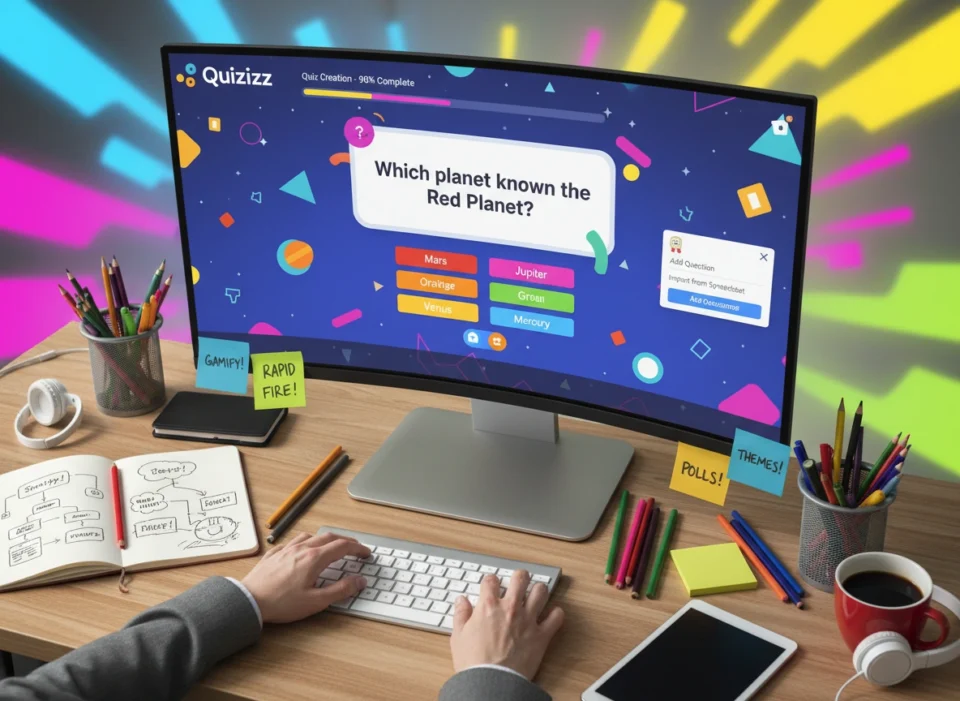
Quizzes are a powerful tool for educators, trainers, and presenters. They can transform passive learning into an active, engaging experience. But creating them from scratch can often feel time-consuming and complex. Quizizz is a platform designed to solve this problem, allowing anyone to build interactive and effective quizzes in a remarkably short time. Whether you’re a teacher looking to liven up your classroom, a corporate trainer measuring knowledge retention, or just someone wanting to create a fun trivia night, this guide will walk you through the process.
This article provides a comprehensive, step-by-step look at how to create engaging quizzes on Quizizz. You will learn how to get started, explore different question types, leverage powerful customization features, and use gamification to boost participation. We’ll also cover how to analyze results to gain valuable insights.
Getting Started: Your First Quizizz Creation
The journey to creating a dynamic quiz begins with a few simple steps. The platform’s user-friendly interface ensures you can get up and running quickly, even if you have no prior experience with quiz-making tools.
First, you’ll need to create a free account on the Quizizz website. You can sign up using an email address or link your existing Google or Microsoft account for faster access. Once registered, you’ll land on your personal dashboard. This is your command center for creating, managing, and reviewing all your quizzes. Take a moment to explore the layout. You’ll find options to create new content, browse a vast library of existing quizzes made by other users, and view reports from past activities.
Step 2: Create a New Quiz
To start, click the “Create” button, which is prominently displayed on your dashboard. You will be prompted to choose what you want to create. Select “Quiz.” This action opens the quiz editor, where the real magic happens. You’ll be asked to name your quiz and assign it to a relevant subject category, like “Mathematics” or “Professional Development.” This helps others discover your quiz if you choose to make it public.
Step 3: Choose Your Creation Method
Quizizz offers incredible flexibility right from the start. You have three main paths to build your quiz:
- Create from Scratch: Build your quiz question by question for complete control over the content.
- Use the “Teleport” Feature: This is a game-changer. You can search the massive Quizizz library for questions from millions of public quizzes. Find a quiz on a similar topic, and you can “teleport” individual questions directly into your own quiz. You can even import entire quizzes and then edit them to fit your specific needs.
- Convert from Existing Documents: Upload a Google Form, Google Slides presentation, or a PDF/DOC file, and the Quizizz AI will automatically generate questions for you. This can save you a significant amount of time by repurposing materials you already have.
For this guide, we will focus on creating from scratch to explore all the features, but remember that the other options are excellent shortcuts.
Building Your Quiz: Question Types and Customization
The core of any quiz is its questions. The variety and format of your questions play a huge role in how engaging your quiz is. Quizizz offers a diverse range of question types to keep your audience on their toes.
Exploring Question Types
In the quiz editor, you’ll see options to add a new question. Here are some of the most popular formats available:
- Multiple Choice: The classic format. Provide several answer options with one or more correct choices. You can allow single or multiple correct answers.
- Fill-in-the-Blank: Ask participants to type in the correct answer. You can specify multiple acceptable answers to account for variations in spelling or phrasing.
- Open-Ended: Pose a question that requires a written response. This is great for gauging deeper understanding or gathering opinions.
- Poll: Use this to gather feedback or opinions without a right or wrong answer. It’s an excellent way to start a discussion.
- Draw: Participants can draw their answers on the screen. This is perfect for subjects like biology (labeling a cell), geometry (drawing a shape), or creative brainstorming.
- Slide: This isn’t a question, but a way to insert content. You can add slides with text, images, or embedded videos to provide information or instructions between questions.
Varying your question types is crucial for maintaining engagement. A quiz with only multiple-choice questions can become monotonous. Mixing in a fill-in-the-blank, a draw question, and a poll can make the experience more dynamic and interesting.
Adding Multimedia and Enhancing Questions
To make your quiz visually appealing and more accessible, add multimedia elements. For each question, you can upload images, add audio clips, or embed YouTube videos. For example, you could show an image of a historical artifact and ask students to identify it, play a short audio clip of a foreign language phrase and ask for its translation, or show a science experiment video and ask about the outcome.
Quizizz also includes a powerful equation editor, making it an invaluable tool for STEM educators. You can easily write complex mathematical and chemical formulas directly within the questions and answers.
Making It Engaging: Gamification and Interactive Settings
This is where Quizizz truly shines. The platform is built on a foundation of gamification, turning a simple assessment into a fun and competitive game. These features are highly customizable, allowing you to tailor the experience to your audience.
Leveraging Gamification Elements
When you’re ready to share your quiz, you can host it as a live game or assign it as asynchronous homework. Both modes incorporate powerful gamification features:
- Leaderboards: A live leaderboard shows player rankings in real-time, fueling a sense of competition.
- Points and Streaks: Players earn more points for answering correctly and quickly. Answering multiple questions in a row activates a streak bonus.
- Power-ups: Participants can earn in-game advantages, like “50/50” to eliminate two wrong answers or “Time Freeze” to pause the clock.
- Redemption Questions: At the end of the quiz, players get a chance to re-attempt one of their incorrect answers.
- Memes and Music: You can add custom or pre-made memes that appear after each question, providing humorous feedback. Upbeat background music adds to the energetic atmosphere.
These elements transform the quiz from a test into a game, which can significantly reduce anxiety and increase motivation.
Customizing Your Quiz Settings
Before you launch your quiz, dive into the settings menu. Here, you can fine-tune the experience. You can control the timer for each question, decide whether to show the leaderboard, and toggle power-ups on or off. For a more serious assessment, you might disable some of the more “gamey” features. For a review session, you might turn them all on. This level of control allows you to adapt the quiz to any context, from a formal exam to a casual team-building activity.
Analyzing Results: Insights and Actionable Data
Once your quiz is complete, Quizizz provides a robust reporting system. This data is invaluable for understanding participant performance and identifying knowledge gaps.
Understanding the Reports
In the “Reports” section of your dashboard, you can view detailed analytics for every quiz you’ve run. The overview shows class-level accuracy, the toughest questions, and interesting facts about the session.
You can then drill down into individual student performance, seeing which questions they got right or wrong and how long it took them to answer. The question-level analysis shows what percentage of the class answered each question correctly, helping you quickly spot topics that the entire group may be struggling with.
Taking Action on the Data
This data is more than just a record; it’s a tool for improvement. If you see that 80% of your class struggled with a particular question, you know it’s a concept that needs reteaching. You can use this feedback to adjust your curriculum or training materials. For individual students who are falling behind, you can offer targeted support. Quizizz makes it easy to share performance reports with students, parents, or managers, fostering transparency and communication.
Conclusion: Start Creating Today
Quizizz removes the barriers to creating high-quality, interactive quizzes. With its intuitive interface, diverse question types, powerful gamification features, and insightful analytics, you have everything you need to build engaging learning experiences in just minutes. You can start from a template, teleport questions from a vast library, or create your own content from scratch, all while enriching it with multimedia and custom settings.
The platform’s blend of assessment and entertainment makes it a versatile tool for any classroom or workplace. By turning learning into a game, you can increase participation, improve knowledge retention, and gain a clearer understanding of your audience’s comprehension.
Ready to transform your assessments? Sign up for Quizizz today and create your first engaging quiz.
Please visit website for more info.
